Blender runs on almost anything, but it rewards the right hardware in a way few creative tools do.
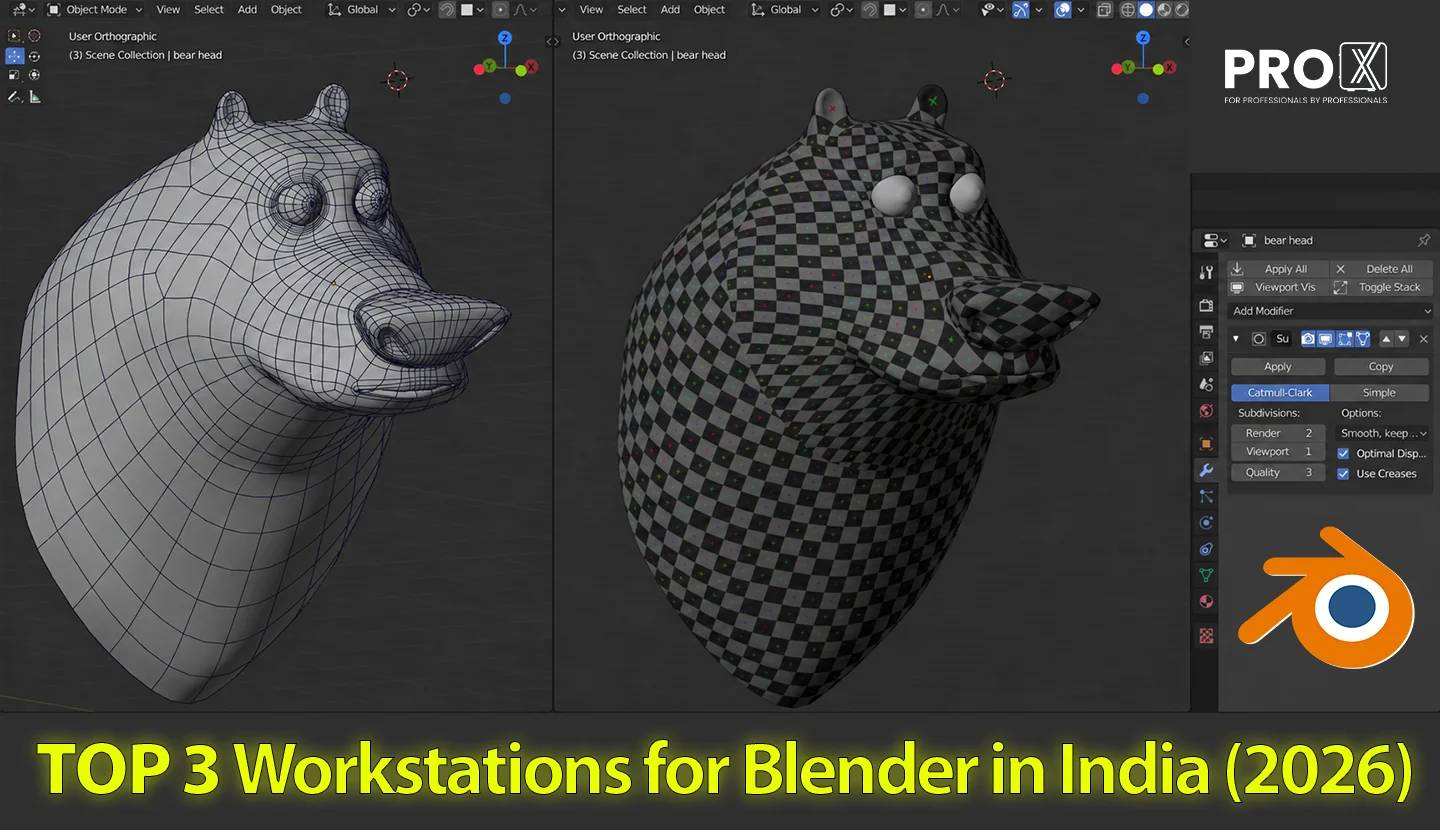
Blender runs on almost anything, but it rewards the right hardware in a way few creative tools do. The same scene that crawls on a thin laptop can render in seconds on a machine built for it. This guide breaks down how Blender actually uses your CPU, GPU, VRAM, and RAM, what the 2026 hardware requirements look like, and three that map to real Blender workflows, from a solo artist learning the ropes to a studio baking fluid simulations.
If you only want the shortlist, here it is:
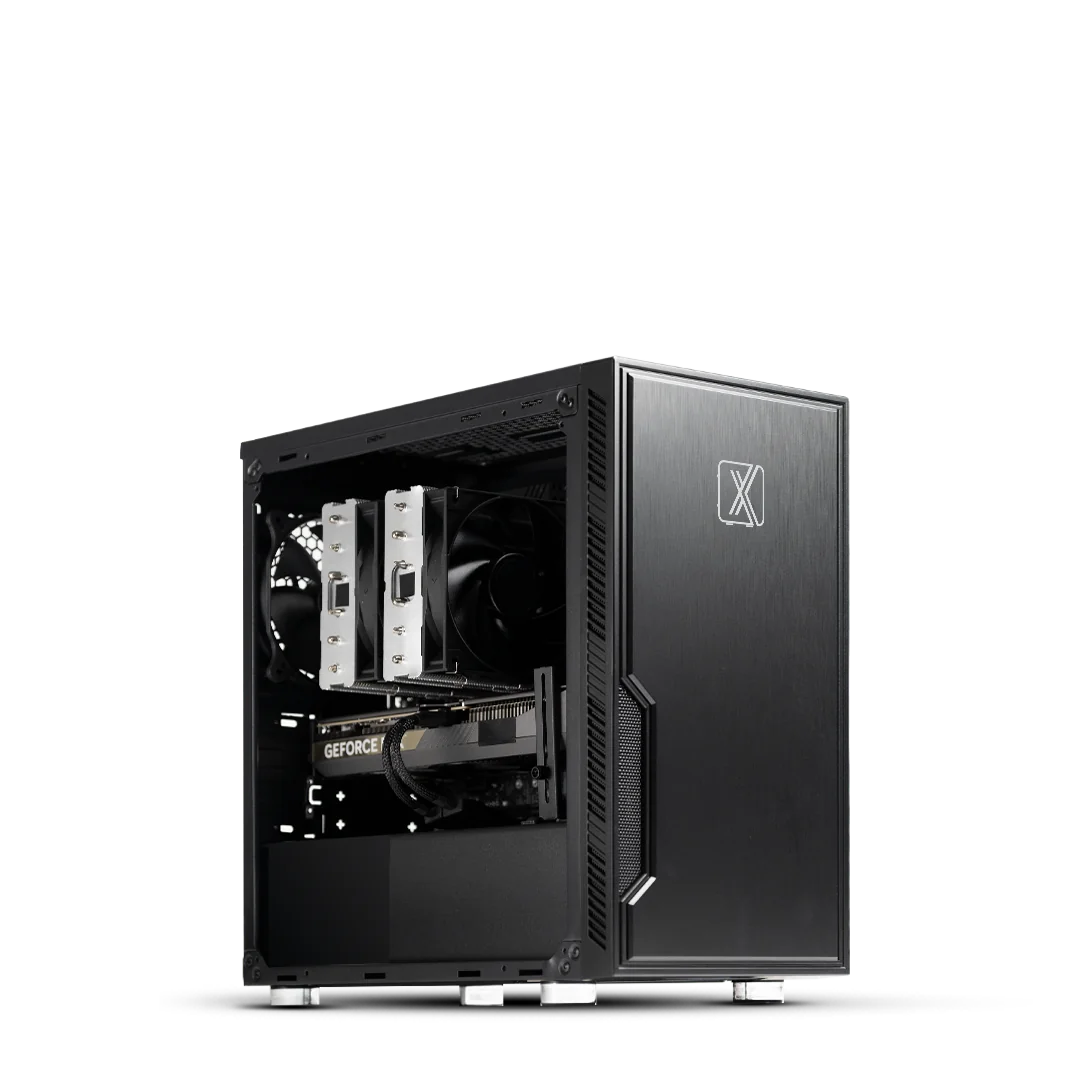
Entry / solo artists and freelancers: Pro Maven GS CI500
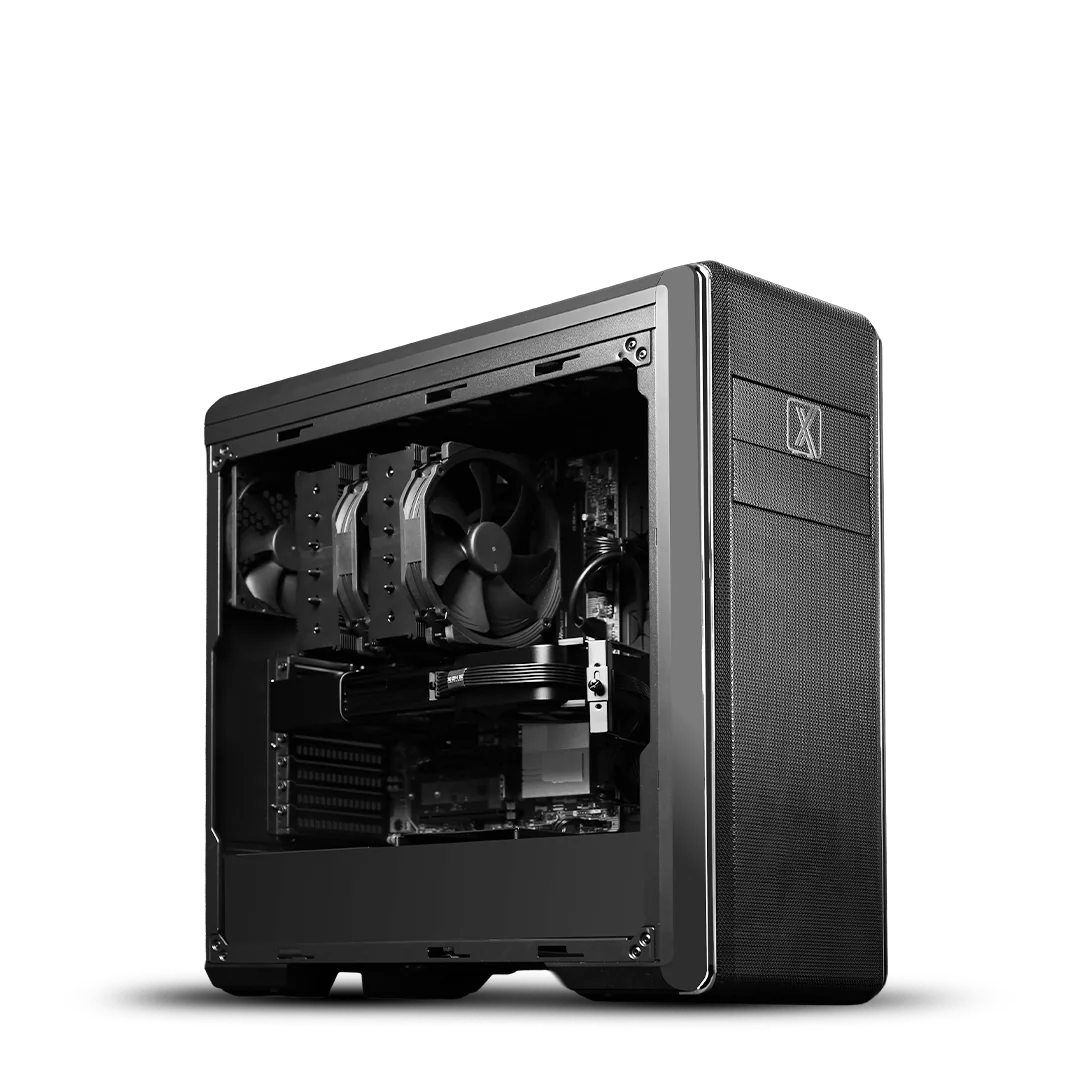
Professional / production work: Pro Maven GS CI520
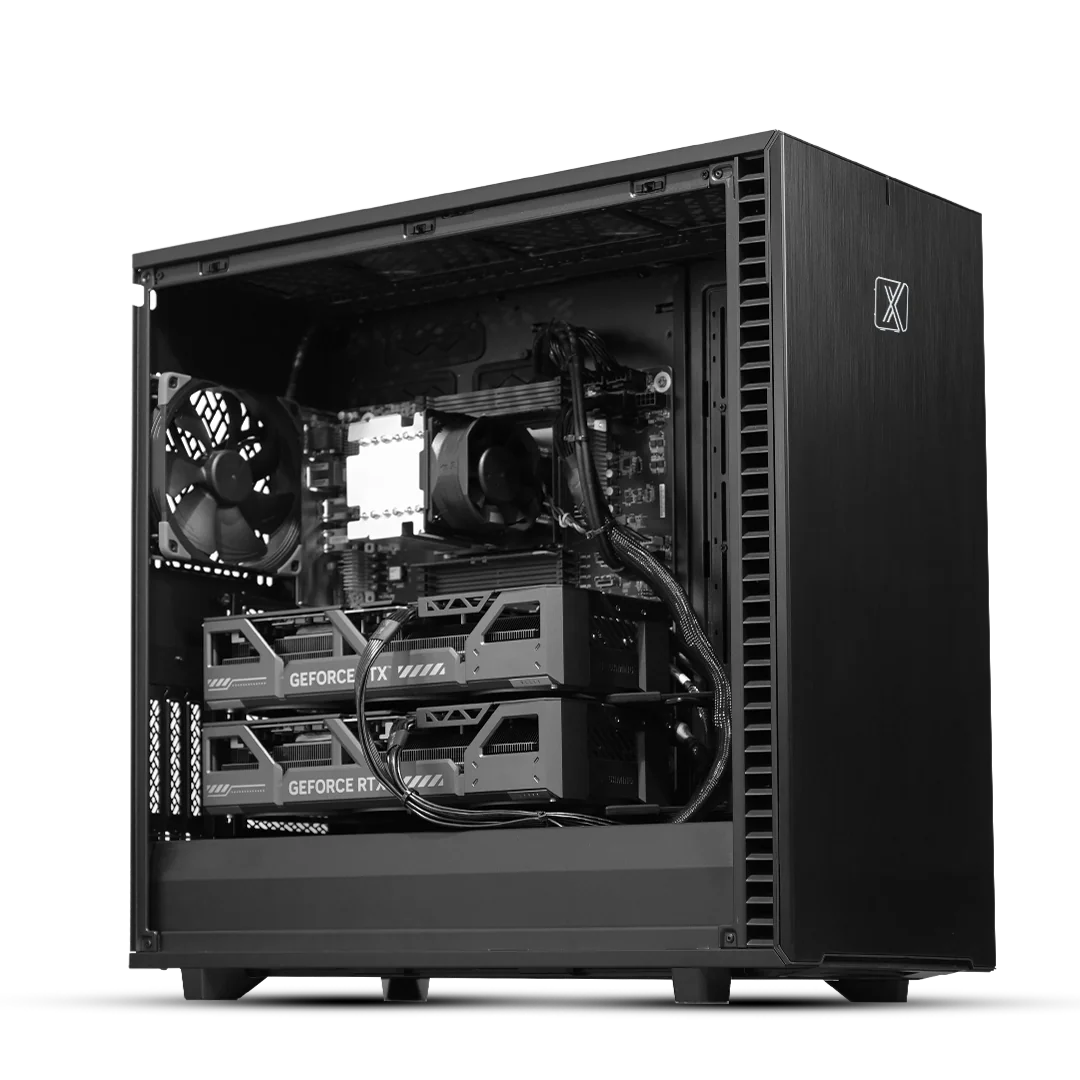
Studio / heavy simulation and rendering: Pro Maven GT CA500
The rest of this guide explains why these picks make sense, so you can match a build to the work you do rather than to a spec sheet.
Most "best PC for Blender" lists skip the part that actually helps you choose: which component does what. Blender splits work across the CPU and GPU depending on the task, so a balanced build beats one that overspends on a single part.
Cycles is Blender's path-tracing render engine, and it leans heavily on the GPU. On NVIDIA cards it uses OptiX, which taps the dedicated RT cores on RTX GPUs to accelerate ray tracing. This is the single biggest reason RTX cards dominate Blender benchmarks. OptiX works with NVIDIA RTX cards to maximise ray-tracing performance, and it also drives the AI denoiser that cleans up renders.
Cycles supports other backends too: CUDA for older NVIDIA cards, HIP for AMD Radeon, oneAPI for Intel Arc, and Metal for Apple Silicon. CUDA supports NVIDIA GeForce RTX 20, 30, 40, and 50 series cards, HIP supports AMD Radeon RX 5000 through 9000 series, and oneAPI supports Intel Arc A-Series and B-Series. In practice, NVIDIA with OptiX gives the most predictable speed for Blender today.
EEVEE (now EEVEE Next) is the real-time engine. It rasterises rather than path-traces, so it runs on the GPU at interactive speeds and is lighter on VRAM than Cycles. Blender 5.0 moved EEVEE and the viewport to a Vulkan backend, and Blender reports up to four-times faster material compilation on Vulkan with NVIDIA hardware. A capable GPU keeps your viewport smooth while you work, separate from how fast it renders final frames.
For GPU rendering, your whole scene (geometry, textures, volumes) has to fit in the graphics card's VRAM. Overflow it and performance falls off a cliff. Running out of VRAM forces Blender to use system memory to make up the difference, which causes a significant performance decrease, so it is safer to choose a card with more onboard memory than you think you need. This is why VRAM, not raw core count, is often the deciding spec for heavy scenes.
The CPU handles modeling, animation, physics, and CPU rendering. The catch is that different jobs want different CPUs. Modeling and animation run better on a single fast core, rendering benefits from a high core count, and simulations are split: cloth and rigid-body sims use only a few fast cores, while fluid simulations use many cores. So a sculptor wants high clock speed, a render farm wants core count, and someone doing fluid sims wants both.
System RAM holds your scene plus any simulation or render caches before they ever reach the GPU. Blender runs fine in 16GB for small projects, but larger projects need 32GB, and a system that runs out of RAM starts swapping to disk, which slows load times and frame rates. Heavy simulation and large production scenes push this to 64GB and beyond. RAM should always exceed your VRAM, since the scene loads into system memory first.
Project files, texture libraries, and simulation caches all benefit from fast storage. A common setup is one NVMe SSD of 500GB or more for the OS and applications, plus a 1 to 2TB NVMe SSD for project files, with slower drives for archival libraries. An NVMe drive cuts asset load and cache times noticeably on large scenes.
Blender 5.0 raised its baseline. Here is where the bar sits now, and what to aim for.
Minimum (Blender 5.0): NVIDIA GeForce 900 series or newer, AMD GCN 4th gen or newer, or Intel Kaby Lake or newer, a Vulkan-capable GPU, 8GB RAM, and an SSD. This will launch Blender and handle small scenes, nothing more. (Note: Blender 4.5 LTS is the last release to support Intel-based Macs, so older Mac users should stay on LTS.)
Recommended for real work: a current RTX card with at least 12 to 16GB VRAM, 32 to 64GB RAM, an NVMe SSD, and a modern multi-core CPU.
Professional / studio: the fastest GPU you can justify, 64 to 128GB RAM or more, and a high-core-count CPU if you do CPU rendering or fluid sims.
For most users today, the practical pick is an NVIDIA RTX 50-series card with enough VRAM for your scenes:
RTX 5060 Ti / RTX 5070: entry, good for learning and light to medium scenes
RTX 5070 Ti / RTX 5080 (16GB): the sweet spot for most professional Blender work
RTX 5090 (32GB): the current performance leader for Blender. Puget Systems lists the RTX 5090 as the fastest GPU for Blender, with the rest of the RTX 40 and 50 series also performing well
For workloads that need very high VRAM (massive scenes, dense volumetrics), NVIDIA's RTX Pro Blackwell workstation cards go further, topping out at the RTX Pro 6000 Blackwell with 96GB. You do not need a workstation-class card for Blender by default. There is no specific need for a professional GPU like the RTX Pro line, except that such cards often carry more VRAM than consumer cards, which matters if your workload is VRAM-heavy.
A quick note on the rumoured 24GB "Super" refresh (RTX 5080 Super, RTX 5070 Ti Super): these higher-VRAM variants have been delayed, with reports now pointing to a 2027 reveal, so for a build today the realistic high-VRAM choices are the RTX 5090 at 32GB or an RTX Pro Blackwell card.
Match the CPU to your dominant task:
Modeling, sculpting, animation (high clocks): Intel Core Ultra 9 or AMD Ryzen 9 9950X
Rendering and mixed production (more cores): AMD Ryzen 9 9950X, Intel Xeon W, or Threadripper-class
Fluid simulation and CPU rendering at studio scale: AMD's Threadripper PRO 9995WX, with 96 cores and support for up to 1TB of RAM, is the current top choice for fluid sims and CPU rendering, while Core Ultra and Ryzen 9000 are best for modeling and animation.
ProX builds the Pro Maven series as configurable workstations rather than fixed boxes, so each tier below can be tuned to your scenes. Every model uses NVIDIA Blackwell graphics and DDR5 memory. Here are the three that line up with how people actually use Blender, with the Intel and AMD options in each tier.
Up to 20 cores / 28 threads, up to 5.4 GHz
Single NVIDIA Blackwell GPU, up to 24GB VRAM
Up to 256GB DDR5
This is the build for a solo artist, freelancer, or anyone moving from a laptop to a proper desk machine. The 20-core Intel chip gives you genuine CPU rendering and simulation headroom, while a single Blackwell GPU handles Cycles and EEVEE comfortably for most scenes. For Blender specifically, a 16GB-class card keeps you smooth on typical project work, and you can step VRAM up as your scenes grow.
Prefer AMD? The Pro Maven GS CA500 (8 cores / 16 threads, 5.5 GHz) trades cores for higher clocks, which suits artists who spend more time modeling than rendering.
Up to 24 cores / 24 threads, up to 5.5 GHz
Single NVIDIA Blackwell GPU, up to 96GB VRAM
Up to 256GB DDR5
For full-time production work, this is the balance point. The 24-core Intel CPU keeps modeling responsive and still renders quickly, and the single-GPU platform can be configured all the way up to a 96GB Blackwell card (the RTX Pro 6000 Blackwell) for scenes that would choke a consumer GPU on VRAM. Most pros will not need 96GB, but having the ceiling means you never hit the VRAM wall mid-project.
The AMD counterpart, Pro Maven GS CA520 (16 cores / 32 threads, 5.7 GHz), pairs the high-clock Ryzen 9 9950X with the same GPU options, which is a strong pick if your work is sculpting and animation heavy.
Up to 96 cores / 192 threads, up to 5.4 GHz
Dual NVIDIA Blackwell GPUs, up to 2x 96GB VRAM
Up to 512GB DDR5
This is the build for studios running heavy fluid simulations, large CPU renders, or multi-GPU final-frame work. The 96-core Threadripper PRO platform is what the simulation and CPU-rendering crowd reaches for, and Blender can pool both GPUs during rendering for serious throughput. Note that only one GPU drives the viewport, so the second card earns its place at render time, not in the editor.
If you want the Intel route, the Pro Maven GT CI500 (60 cores / 120 threads, dual Blackwell GPUs) is built on a Xeon W platform and suits the same studio workloads.
Learning Blender or freelance work: Pro Maven GS CI500. A single capable GPU and a strong CPU covers everything you will throw at it early on.
Sculpting and character animation: lean toward the AMD options (GS CA500 or CA520) for higher clock speeds, since these tasks favour single-core performance.
Archviz and product rendering: the professional GS CI520, with room to scale VRAM for dense, high-texture scenes.
Fluid, smoke, and large CPU renders: the studio GT CA500, where 96 cores and high RAM ceilings pay off directly.
Every Pro Maven build is configurable, so if your workflow sits between two tiers, the spec can be adjusted rather than forcing you into the next bracket.
See all Real-Time Engine and 3D Modeling workstations
For most users, an NVIDIA RTX 50-series card with OptiX support is the most practical choice. The RTX 5090 (32GB) currently leads on raw performance, while the RTX 5070 Ti and RTX 5080 are the sweet spot for everyday professional work. For VRAM-heavy scenes, RTX Pro Blackwell cards scale up to 96GB.
8GB is the floor for light work, 12 to 16GB covers most professional scenes, and 24GB or more is for very large or texture-dense projects. Your scene must fit in VRAM for GPU rendering, so when in doubt, choose more.
Both. Cycles and EEVEE render on the GPU, while modeling, animation, physics, and CPU rendering run on the processor. Fluid simulations are CPU-heavy and want many cores; modeling wants high clock speed.
For modeling and animation, clock speed matters more than core count, so 8 to 16 fast cores is plenty. For CPU rendering and fluid simulation, more cores help directly, which is where 60 to 96-core workstation chips pay off.
32GB is the practical minimum for serious work, 64GB is comfortable for heavy scenes and multitasking, and 128GB or more suits large simulations and production pipelines. RAM should always exceed your GPU's VRAM.
NVIDIA is the more predictable choice today because OptiX uses RTX cards' RT cores for faster ray tracing in Cycles. AMD Radeon works through HIP and is supported, but NVIDIA generally leads in Blender benchmarks.
A single strong GPU is enough for most artists. Blender uses only one GPU for the viewport, but it can pool multiple GPUs during rendering, so a second card mainly helps studios cutting final-frame times.
Yes, for learning and light scenes. For production work with heavy rendering or simulation, a desktop workstation gives more sustained performance, better cooling, and the option to scale VRAM and cores.
Building a workstation around your specific Blender pipeline? ProX configures each Pro Maven to the work you do. Talk to the team.
Resources you may find helpful.

Computing workstations are vital for professionals needing high-performance, reliable machines for complex tasks in engineering, research, multimedia, and more.
Choose the best deep learning workstation by assessing your needs, budget, and future projects. Balance performance and cost for the best value in your investment.

Model training workstations drive research and innovation, enhancing AI, genomics, materials science, and climate modeling with unmatched speed, accuracy, and efficiency.
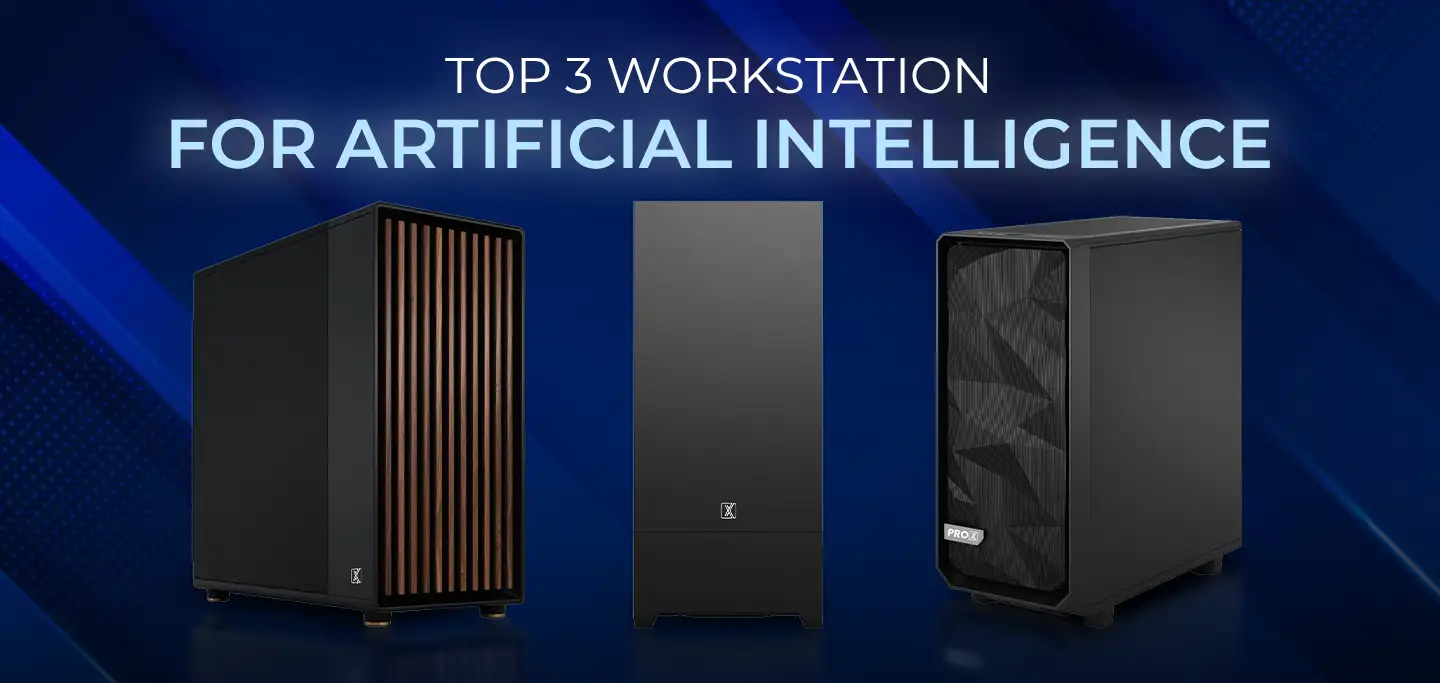
ProX PC has crafted a lineup of AI-focused workstations designed to conquer your most challenging projects effortlessly.