Building a custom PC for video editing in India can be rewarding and give you a machine tailored to your specific needs.

When looking for a custom PC for video editing in India, you want a machine that can handle large files, process high-quality footage, and support creative software smoothly. Video editing requires a balance between powerful components, good amount of storage, and system cooling. Here are the top 10 things to consider when buying a custom PC for video editing.
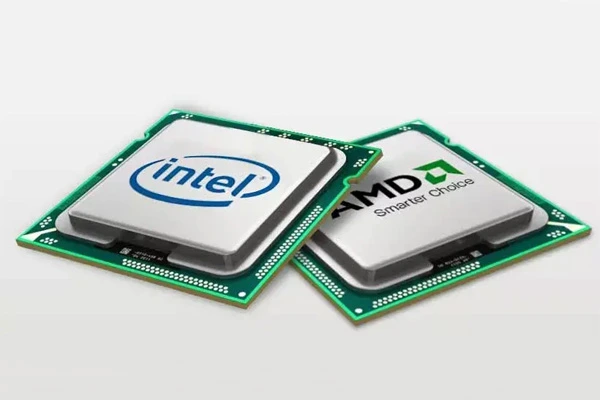
The CPU is the heart of your PC, especially for video editing, where complex processes like rendering and exporting demand speed. For video editing, a multi-core processor with high clock speeds is essential. Here are some recommendations:
Look some of the ProX PC recommended workstation meating such high specifications:
Tips: Look for a CPU with at least 6 cores, but 8-12 cores are ideal for professional editing.
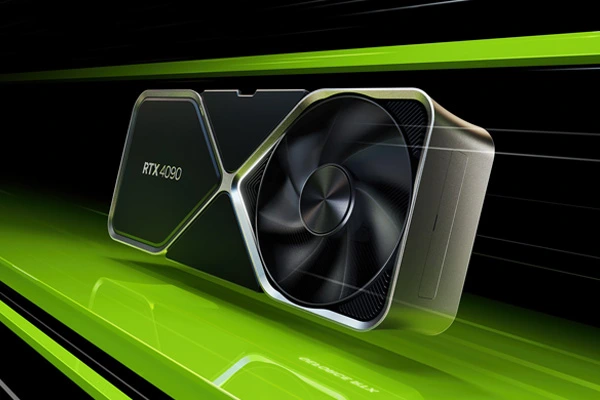
A high-performance graphics card is crucial for rendering high-resolution videos and smooth playback. Many video editing software programs, like Adobe Premiere Pro and DaVinci Resolve, use GPU acceleration to boost performance.
Tips: A GPU with at least 6GB of VRAM is recommended, but 8GB or more is ideal for handling high-resolution video footage.
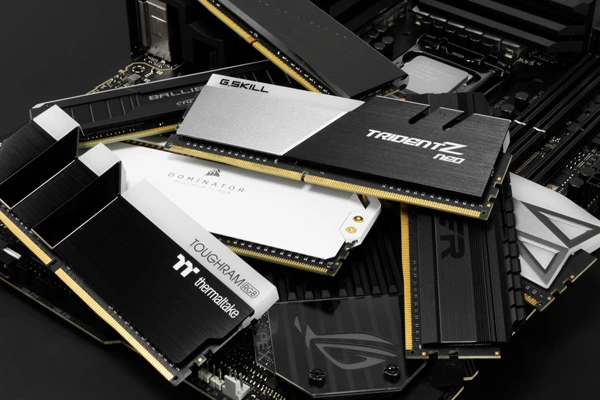
Video editing software requires substantial memory to process multiple layers of footage, effects, and edits. 16GB is the minimum recommended for video editing, but 32GB or 64GB can offer smoother performance, especially when working with 4K footage or larger projects.
Tips: Opt for a dual-channel or quad-channel RAM setup for optimal performance.
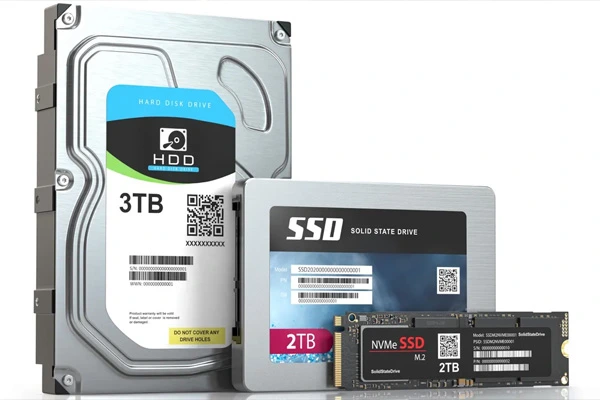
Storage speed affects how quickly files load, which is important when working with large video files. A combination of SSD and HDD can be ideal:
Tips: This setup provides the speed of SSDs for active work and the affordability of HDDs for long-term storage.
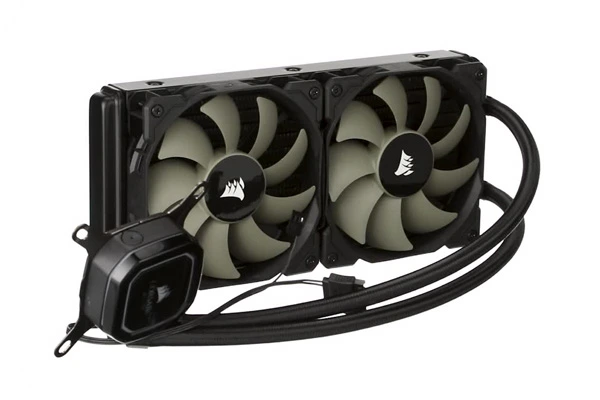
Video editing puts a lot of strain on your PC’s components, generating heat. Proper cooling prevents performance drops due to thermal throttling.
Tips: Invest in a high-quality CPU cooler and ensure that your case has enough fans for optimal airflow.
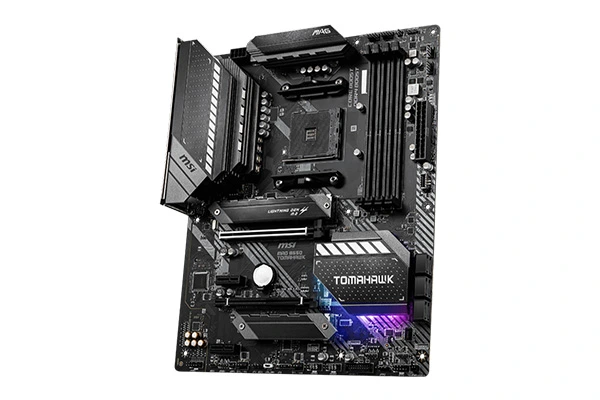
The motherboard is the backbone of your PC, connecting all components. When choosing a motherboard, make sure it is compatible with your CPU, GPU, and RAM.
Tips: Brands like ASUS, MSI, and Gigabyte offer reliable options for custom builds.
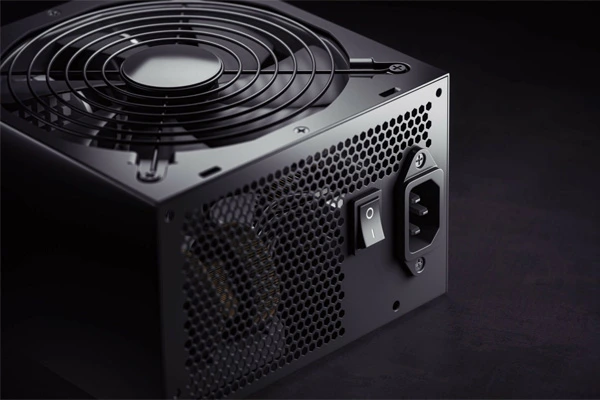
A stable power supply is essential to prevent hardware issues and ensure consistent performance. Choose a power supply unit that provides enough wattage for your entire setup with some room for upgrades.
Tips: Reliable brands include Corsair, EVGA, and Seasonic, known for durability and stability.
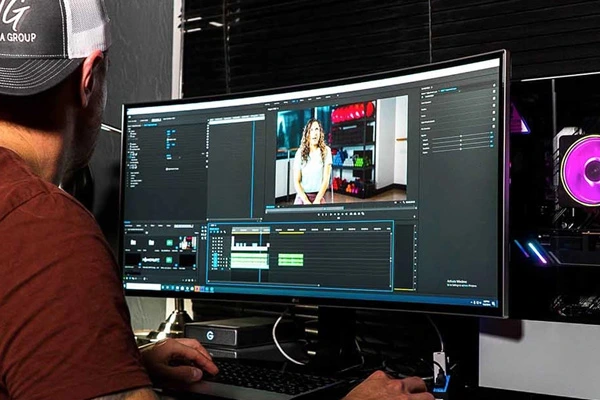
A high-resolution monitor with good color accuracy is important for video editing. Consider monitors with at least 4K resolution if your work requires high-quality output.
Tips: Brands like Dell, LG, and BenQ are popular choices for video editing monitors in India.

Losing your project files due to a hardware failure can be disastrous. Set up a backup system to safeguard your work.
Tips: Having multiple backup options ensures your valuable work is protected.
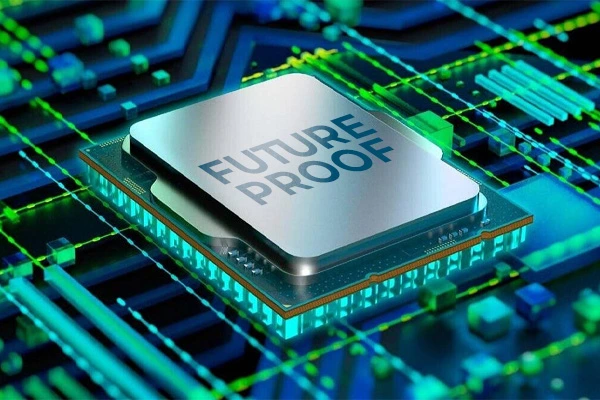
Technology changes rapidly, and you may need to upgrade your PC components in the future. When building a custom PC, consider:
Tips: Choosing a case with adequate space and a motherboard with expansion options will keep your PC ready for future upgrades, saving you money down the road.
Building a custom PC for video editing in India can be rewarding and give you a machine tailored to your specific needs. By focusing on these 10 key components—CPU, GPU, RAM, storage, cooling, motherboard, PSU, monitor, backup solutions, and future-proofing—you can build a powerful setup that meets the demands of modern video editing.
Each component plays a unique role in achieving a smooth editing experience. Do thorough research on each part, compare prices across Indian markets, and always choose quality over saving a few rupees on critical components. A well-built PC will enhance your productivity, letting you focus on creativity rather than technical issues. Happy editing!
Visit: www.proxpc.com
Read More Related Topics:
Resources you may find helpful.
Computing workstations are vital for professionals needing high-performance, reliable machines for complex tasks in engineering, research, multimedia, and more.
Choose the best deep learning workstation by assessing your needs, budget, and future projects. Balance performance and cost for the best value in your investment.

Model training workstations drive research and innovation, enhancing AI, genomics, materials science, and climate modeling with unmatched speed, accuracy, and efficiency.
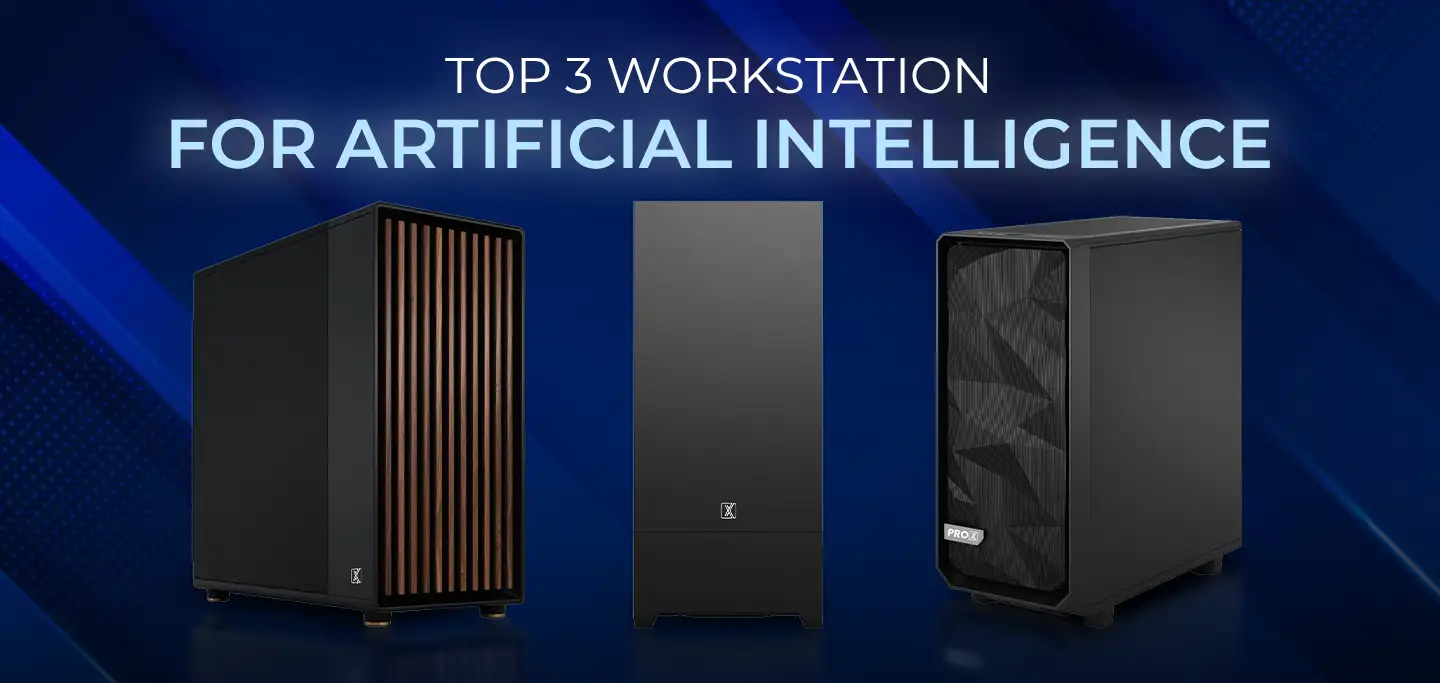
ProX PC has crafted a lineup of AI-focused workstations designed to conquer your most challenging projects effortlessly.