Our Twinmotion workstations are designed using only the most optimum hardware choices to give you the power you need to quickly and efficiently complete your work.
Like most software developers, Epic maintains a list of system requirements for Twinmotion – but unfortunately, it is rather vague. Instead of specific CPU and GPU models, they describe some of the important factors to look for (like VRAM size) which only address one aspect of performance. To help give more precise recommendations, we have expanded on their information with our own research into what Twinmotion really needs for optimal results.
When it comes to CPUs there are two main specifications that define the capability of a CPU:
The frequency directly affects how many operations a single CPU core can complete in a second (how fast it is).
The number of cores is how many physical cores there are within a CPU (how many operations it can run simultaneously).
Whether a higher frequency or higher core count is faster depends on how well a program is designed to take advantage of multiple CPU cores.
What is the best CPU for Twinmotion?
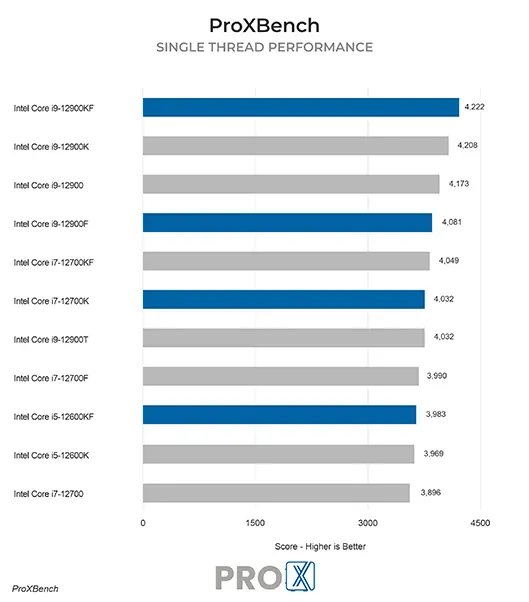
For Twinmotion, you want a high clock speed CPU with a moderate number of cores. This closely mirrors the needs of Unreal Engine, which makes sense since both are made by Epic and indeed share a lot of behavior and characteristics. Top-end processors in AMD’s Ryzen and Intel’s Core product lines fit these requirements nicely, and Intel’s Core i9 13900K and AMD Ryzen 9 7950X are among the best options.
Should I get an overclocked system for Twinmotion?
In general, we do not recommend overclocking for any professional workstation. Typically, the modest performance gains are not worth the downsides associated with overclocking which can include instability, shorter hardware lifespan, and potential data inaccuracies.
The video card handles the actual 3D visualization of models on-screen in Twinmotion. The more complex your projects, the more powerful it should be.
What video card (GPU) is best for Twinmotion?
In most situations, the faster the video card is the better performance you will get in Twinmotion. Graphics card memory, or VRAM, is also important – especially for displaying complex models. Right now, the GeForce RTX 4090 24GB is the fastest overall GPU for Twinmotion – but if you need to save money then the RTX 4080 with 16GB or 4070 SUPER with 12GB are also solid choices.
Do I need to use a “professional” card for Twinmotion or is GeForce okay?
NVIDIA’s GeForce cards offer great performance per dollar, but if you are using Twinmotion alongside an Autodesk product like Revit or AutoCAD then you might want to go with a card that is certified for that software. Many of NVIDIA’s professional RTX series cards would fit that bill, and they also tend to come with more VRAM than their mainstream GeForce counterparts. Currently, the RTX 6000 Ada Generation with 48GB is the fastest pro-grade card available.
How much memory (RAM) does Twinmotion need?
Epic lists a minimum of 16GB for Twinmotion, but being right at the bare minimum usually won’t give a great experience. We recommend 64GB for most of our customers, which matches Epic’s “high-end requirements”, but if you are working with smaller projects then 32GB should suffice. Also keep in mind the needs of any other software you run alongside Twinmotion, as those programs will need memory space as well.
What is the best type of drive to use for Twinmotion?
Thanks to their speed and relatively affordable price, we strongly recommend solid-state drives (SSDs) for the primary drive that will host your OS and the installation of Twinmotion itself – as well as any other applications you use. The high speed of SSDs allows your system to boot, launch applications, and load files many times faster than any traditional hard drive. In particular, the newer NVMe type of SSDs utilize the latest connections like M.2 and offer the fastest transfer rates. We highly recommend using an OS drive with a capacity of 1TB to ensure you do not need to upgrade your primary drive (which is often a complicated process) in the near future.
If your budget allows, it is also a very good idea to have a second SSD that can be used to store your active projects to further decrease load and save times. The size of such a drive depends entirely on your files and other data, but 1TB is a good place to start here as well.
What sort of drive is best for data storage and backup?
Since SSDs are still more expensive than platter drives per GB, for long-term storage and backup we recommend using a traditional hard drive or even an external drive array. Network attached storage systems are a great way to go for that, as they can be shared between multiple workstations and usually offer features to provide some level of data redundancy (protection against losing files if one of the drives dies).
ProX PC's Maven workstations stand out for their exceptional performance and versatility. They feature high-end components, providing powerful computing capabilities for demanding tasks. The Maven workstations are designed with flexibility to scale, allowing for extensive customization to meet user-specific needs.
Absolutely! Over the years we have helped quite a few of our customer make the move from Mac to PC. In fact, it is a large enough number that we have a dedicated Need help moving from Mac to PC? page to answer some of the more common questions we receive.
Yes, we offer customizable solutions tailored to your specific requirements. Whether you need extra GPU power, additional RAM, or specialized storage solutions, we can build a workstation that meets your exact needs.
Yes, our workstations are designed with upgradeability in mind. You can easily upgrade components such as the GPU, RAM, and storage to keep up with evolving technology and increasing demands.
We provide comprehensive support, including technical assistance, troubleshooting, and warranty services. Our team is dedicated to ensuring your workstation operates at peak performance and addressing any issues that may arise.
You can contact us through our website's contact form, call our customer support-(011-40727769), or email us at sales@proxpc.com. Our team is ready to help you with any questions or to help you place an order.


Select your Platform:
Our workstations are extensively customisable as per your requirements which makes your ProX PC Workstation PC unique.
Our Workstation PCs are stress tested with advance burn-in test techniques so as ensure that you get reliability and performance.
Every Pro X PC comes with standard 3 Years RTB warranty or 3 Years of optional On-Site warranty at minimal cost that covers all your components and gives you peace of mind.
To ensure that our Workstation PC exceeds the industry quality standards we have more than 80 quality check points in place so that you get best of the best.
Pro X PC Workstations are equipped with performance cooling solutions so that you could peak your components without stressing them out.
Even when your parts warranty expires, we continue to answer your questions and even fix your computer with no labor costs.