Custom Built Workstations for DaVinci Resolve

Custom Built Workstations for DaVinci Resolve

DaVinci Resolve has a unique set of hardware requirements that you will not find on most standard PC. Our custom built workstations have been designed and optimized specifically for Resolve to give you the best possible performance.

DaVinci Resolve System Requirements and Benchmarks

While Blackmagic maintains a Hardware Selection and Configuration Guide for DaVinci Resolve that is much better than the simple “Hardware Requirements” list most developers provide, it contains some information that in our experience is either dated or simply not the best practice for a solid and reliable workstation. In addition, it lacks specific information on performance between different hardware options such as what the benefit actually is between different models or numbers of GPUs.

To offset this missing information, we’ve taken the time to perform our own testing to determine both what hardware runs DaVinci Resolve the best and exactly what kind of performance you can expect from different hardware options.


While DaVinci Resolve heavily relies on the performance of your GPU (especially when using OpenFX or noise reduction), the processor (or CPU) is still a critical component in your system. While many other parts of the system impact performance to some degree, the CPU is the core piece of hardware that is a part of absolutely anything and everything you do. Note that while Dual Xeon workstations used to be ideal for DaVinci Resolve in the past as they were often required for higher GPU counts, recent changes in both hardware and software make this no longer the case. In nearly every instance, a single CPU workstation should easily match a Dual Xeon system at a much lower cost.

What CPU is best for color grading and editing in DaVinci Resolve?

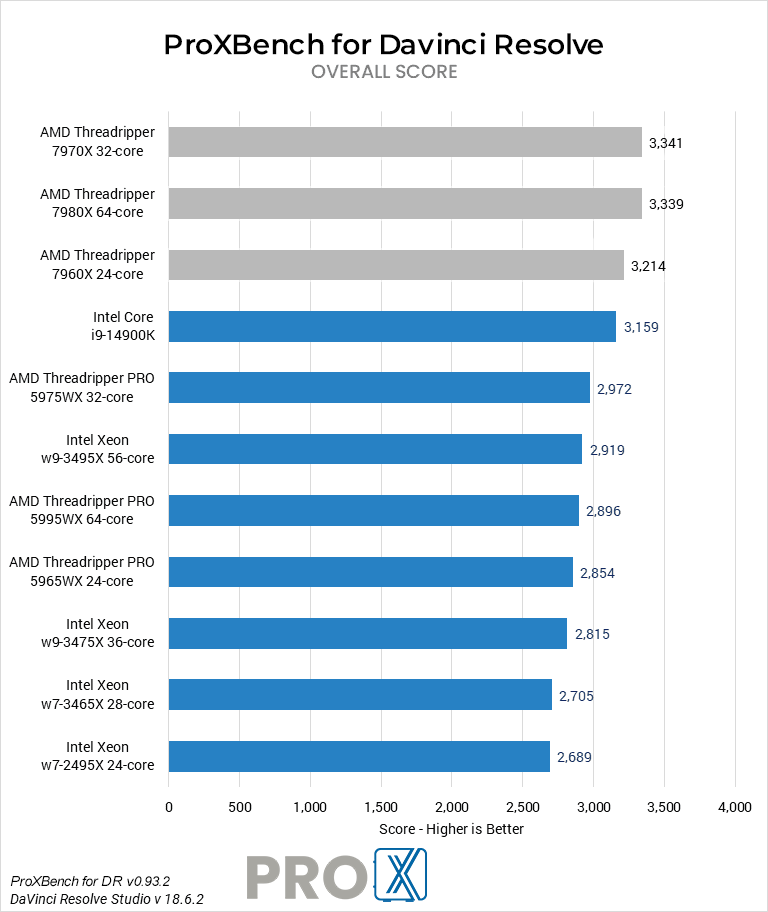
The best CPU for Resolve depends primarily on your budget and how much GPU power you plan to have in your system. If you have a single GPU , then a high clock speed CPU with a moderate core count, like Intel’s Core 14th Gen or AMD’s Ryzen 7000 series, is going to be optimal. Intel’s Core line is particularly well suited for working with H.264 and H.265 (HEVC) footage, thanks to their Quick Sync technology.

On the other hand, if you have multiple GPUs or work with RAW video codecs then you will see a performance boost when using a processor with more cores. AMD’s Threadripper 7000 Series is especially good in those situations.

What CPU is best for Fusion in Resolve?

Fusion was integrated into DaVinci Resolve relatively recently and currently is quite a bit different than the rest of Resolve. Here, you are better off with a CPU that has a high frequency than one with a lot of cores.

Do more CPU cores make DaVinci Resolve faster?

To a certain extent, more cores should improve performance, although more complex projects with OpenFX and noise reduction will often be influenced more by the performance of your GPU(s) than your processor. In addition, Resolve is in many ways a collection of different software packages combined together and some (like Fusion) much prefer a CPU with higher per-core performance than one with a lot of cores.

Keep in mind that core count is just one of many different specifications that affect performance. Because of this, we highly recommend that you look at straight benchmark performance for different CPUs rather than trying to pick a CPU based on core count (or any other specification) alone.

Does Intel Quick Sync benefit DaVinci Resolve?

Some Intel processors feature on-board graphics chips with enhanced video encoding and decoding capabilities, a feature known as Quick Sync. Most modern video cards offer similar functionality, but Intel’s Core processors have additional levels of hardware decoding for H.265 footage that aren’t available from contemporary GPUs. The downside is that those mainstream CPUs are limited in terms of core count and support for multiple video cards, so higher-end processors will still offer better overall performance, but models like the Intel Core i9 14900K and i7 14700K can be good price:performance options for those working with H.265 in DaVinci Resolve.

DaVinci Resolve heavily leverages the video card(s) in your system to improve playback and rendering performance. Because of this, your choice of GPU has a direct impact on how well your system performs. One key thing to note is that while the Free Edition of Resolve can utilize powerful cards like NVIDIA’s GeForce RTX 4090, it is limited to just a single GPU. The Studio Edition, however, can technically utilize up to eight GPUs – although in our testing the performance typically peaks at around 3-4 GPUs.

In addition, the Studio version includes GPU-accelerated H.264 encoding and decoding which can often result in a significant increase in performance when working with that type of media.

What GPU (video card) is best for DaVinci Resolve?
DaVinci Resolve benefits greatly from using a GPU and currently the NVIDIA GeForce RTX 4090 is the best card you can get for Resolve – performing about on par with two GPUs from the previous generation. If you are on a bit more of a budget, the GeForce RTX 4070 SUPER and 4080 SUPER also give terrific performance – or if you want to spend more and maximize performance, you could opt for two of the 4090s for even faster results in most areas of Resolve (though keep in mind that Fusion performance can degrade with multiple GPUs).

Do multiple GPUs improve performance in DaVinci Resolve?

Yes, in most areas – but there are caveats. First, you must be using DaVinci Resolve Studio, as the free version only supports a single GPU. Second, not all processing and tasks within Resolve sees improvement with a second (or third) GPU. For example: BRAW and ARRIRAW see solid gains, as do most GPU effects, but AI tasks are a mixed bag with some gains and some small drops when running multiple video cards. Fusion is especially hard hit in this regard, with most tasks we tested seeing substantial decreases in performance when using more than one graphics card. Because of this, it is important to consider your overall workflow and budget when deciding if a multi-GPU configuration would be worthwhile.

Which GPUs support hardware decoding in DaVinci Resolve?

GPU-based hardware decoding in Resolve depends not only on which video card you have, but also what codec, bit depth, and chroma subsampling level your footage is. This topic is too complicated to address in a FAQ like this, so we have a whole article dedicated to answering this question.

How much VRAM (video card memory) does DaVinci Resolve need?

Straight performance is not the only thing to consider when choosing a GPU, it is also essential that your video card has enough VRAM or video card memory for your projects. This can change based on the length and complexity of your timeline, grade, and effects, but in general we recommend having at least the following amounts of VRAM depending on the resolution of your timeline:

Timeline Resolution    1080p    4K    6K/8K
Minimum VRAM capacity    4GB    8GB    20GB+


Does VRAM add together with multiple GPUs?

At the moment, if you have two GPUs with 8GB of VRAM you still only get 8GB of usable video memory. The reason for this is that in order for each GPU to do it’s share of the processing, it needs to have access to all of the data, so each card needs to have it’s own copy.

Does DaVinci Resolve need a Quadro card?

DaVinci Resolve works great with NVIDIA professional graphics cards – formerly branded as “Quadro” – but for most users a GeForce card is the better option. Not only are GeForce cards much more affordable, they are able to match or beat the performance of the pro-grade cards. The main benefit to using a professional card in Resolve is that you can get much higher VRAM capacities, though, which can be essential for those working with >8K media.

Can you mix GeForce and Quadro cards for DaVinci Resolve?

Technically, yes. But, while Resolve itself should work just fine as long as you have it configured correctly, many other applications (especially ones from Adobe like Photoshop) tend to get confused and can give errors with mixed GPU configurations. Because of this and general driver conflicts that can occur, we recommend against doing so if possible.

Is DaVinci Resolve faster with NVIDIA or AMD?

Dollar-for-dollar, we have found that NVIDIA cards currently give better performance in Resolve. We have also found that NVIDIA cards tend to be slightly more reliable (both from a hardware and driver standpoint), which is why we typically use NVIDIA over AMD unless there is a clear benefit to using an AMD card.

Does DaVinci Resolve support NVLink?

No, NVLink does not work in DaVinci Resolve and will actually significantly reduce performance! Right now, in order to enable NVLink you have to turn on SLI which currently means that Resolve can only effectively see and use one of the two installed GPUs. This means that even if you have two GPUs, with NVLink on you will only get the performance of one card.

How do I get 10-bit HDMI or SDI display support for DaVinci Resolve?

While all the video cards in our DaVinci Resolve workstations support 10-bit displays, if color accuracy is concern we recommend using a Blackmagic DeckLink Mini Monitor 4K and the Studio 4K 6G-SDI PCI-E cards. These video monitoring cards are specifically designed to deliver unaltered video signals to your display, resulting in the best possible video and color quality. Note that you will need a dedicated, highly accurate display that is capable of handling the FPS and resolution of your project in order to take full advantage of these cards.

The exact amount of RAM you need is going to depend on the resolution, length, and complexity of your project, but Resolve in general is fairly light on RAM requirements. However, keep in mind that if you often work with multiple programs at the same time, you may want to have even more RAM in your system as each program will need its own chunk of RAM.


How much RAM does DaVinci Resolve need?

The exact amount you need will depend on exactly what you are doing, but we do have a general guideline depending on the different resolutions you work with:

Footage Resolution    4K    6K/8K+
Minimum RAM capacity    32GB    64GB+

Storage is a commonly overlooked aspect of a video editing workstation. While the CPU or video card may be what does all the processing, if your storage isn’t able to keep up it doesn’t matter how fast those components are. What makes storage complicated is the fact that not only do you have to deal with the various types of drives available today, you also want to have them configured in a way that will maximize performance in DaVinci Resolve

What type of storage drive should I use for DaVinci Resolve?

There are three main types of drives you might use for a video editing workstation: SSD, NVMe, and the traditional platter drive. Of these three, traditional platter drives are the slowest but are extremely affordable and available in much larger capacities than SSD or NVMe drives. Due to this, they make excellent long-term storage drives, but in most cases are not ideal to working directly off of.

SATA SSDs are several times faster than a platter drive but are also more expensive. These drives are excellent for a wide range of tasks such as holding your OS and applications, storing media and projects you are actively working on, or as a cache/scratch drive.

NVMe drives come in two flavors (M.2 and U.2), but either one will be significantly faster than even an SSD drive. They are about 30% more expensive than an SSD, but in return are up to five times faster! However, in most cases you will not see much of a performance increase with a NVMe drive since a modern standard SSD is already fast enough that it is rarely a performance bottleneck. High bitrate footage (~2,000 mbps or higher) is typically the only time where having your media on NVMe drive is necessary for DaVinci Resolve.


What storage configuration works best in DaVinci Resolve?

We recommend at least a three drive configuration, with the drive types and sizes depending on your budget and desired performance level:

  1. OS & Applications (SSD or NVMe) – Includes your operating system and the base DaVinci Resolve installation. An SSD is highly recommended as it will greatly improve how fast the OS and programs startup, but you can also upgrade to a faster NVMe drive for a small performance benefit.


  2. Project Files (SSD, NVMe or NAS) – Keeping the project files and assets on their own drive is mostly about organization, but it does also make things easier if you ever need to either restore or reinstall your operating system. Since all the important files are on their own drive, they should be safe even if your OS becomes corrupt. In many cases, you can use either an SSD or NVMe drive for your project files, with the difference coming down to your budget and whether you need it in order to handle the bitrate of your source media for your workflow. A high-speed network storage drive is also an option, especially if you need to share access with other users in an organization.


  3. Media Cache & Scratch (NVMe) – The drive that we most highly recommend defaulting to an NVMe drive is for the cache/scratch files, but even then a standard SATA SSD can certainly get the job done if using an NVMe would put you over budget. Having a dedicated drive for your media cache and scratch files can improve performance when playing and scrubbing through compositions. It also isolates high-stress cache and scratch files away from other data, so that if they cause the drive to fail prematurely all you lose is temporary data that your applications can easily regenerate as needed.


  4. Optional Storage Drives (SSD or HDD) – In addition to the three drives above, some people also opt to add a number of other drives to their system. It may be multiple drives for their project files and assets, or a traditional HDD to act as an intermediate backup/archival layer before copying the data to an external drive or to an offsite backup.


Can you work from an external drive for DaVinci Resolve?

Technically, you could keep your footage and projects on an external drive and edit directly from that drive. However, this is one of the most common causes of performance and stability issues we hear about from our customers. We highly recommend having a large enough internal drive so that you can copy all your files to a local drive before editing. External drives are terrific for backup and archiving, but not ideal to work off of.

That analysis changes if you are looking at high-performance network-attached storage, rather than just a basic external hard drive. A serious software-defined storage system, especially one utilizing exclusively flash-based drives (rather than spinning disk drives), can absolutely be fast enough to edit directly from! We offer those types of solutions, both in the form of our ProX PC Storage line of servers as well as more bespoke options for high-end installations. This approach also facilitates easy sharing between various users in a studio and provides redundancy in case of a drive failure. It is important to make sure your network infrastructure is up to the challenge too!

While audio may not be the primary concern for all video editors and colorists, depending what you are doing in DaVinci Resolve it can be a critical part of your editing workstation. There are a wide range of audio options to choose from including the onboard audio that is built into the motherboard, a discrete PCI-E sound card, or a USB DAC.

Picture of a M-Audio external DAC

Is onboard audio good enough for DaVinci Resolve?

The quality of onboard audio that comes on most motherboards has improved dramatically over the years. However, since the audio chip is on the same PCB as the rest of the motherboard, there can sometimes be issues with signal noise which can degrade the audio quality. This is not a factor if you use digital outputs for stereo or 5.1, but if you use headphones or analog speakers the quality may not be as good as what other dedicated audio devices can provide.

Is a PCI-E sound card or USB DAC better for DaVinci Resolve??

USB DAC’s are currently our top recommendation for editing/grading workstations. Not only is the quality excellent, but there are rarely any driver conflicts with DaVinci Resolve and there are a wide range of options to choose from depending on the inputs and outputs you need. While Sound cards can provide excellent sound quality at a relatively low cost, the required software is often bloated and can sometimes cause issues with Resolve.

Frequently Asked Questions

ProX PC's Maven workstations stand out for their exceptional performance and versatility. They feature high-end components, providing powerful computing capabilities for demanding tasks. The Maven workstations are designed with flexibility to scale, allowing for extensive customization to meet user-specific needs.

Absolutely! Over the years we have helped quite a few of our customer make the move from Mac to PC. In fact, it is a large enough number that we have a dedicated Need help moving from Mac to PC? page to answer some of the more common questions we receive.

Yes, we offer customizable solutions tailored to your specific requirements. Whether you need extra GPU power, additional RAM, or specialized storage solutions, we can build a workstation that meets your exact needs.

Yes, our workstations are designed with upgradeability in mind. You can easily upgrade components such as the GPU, RAM, and storage to keep up with evolving technology and increasing demands.

We provide comprehensive support, including technical assistance, troubleshooting, and warranty services. Our team is dedicated to ensuring your workstation operates at peak performance and addressing any issues that may arise.

You can contact us through our website's contact form, call our customer support-(011-40727769), or email us at sales@proxpc.com. Our team is ready to help you with any questions or to help you place an order.

Need Help? We're here to help.

Unsure what to get? Have technical questions? Contact us and we'll help you design a custom system which will meet your needs.

ProX PC
Blogs

Read all Blogs

Select your Platform:

Why you should buy from ProX PC

Every ProX PC is unique

Our workstations are extensively customisable as per your requirements which makes your ProX PC Workstation PC unique.

Stress Tested

Our Workstation PCs are stress tested with advance burn-in test techniques so as ensure that you get reliability and performance.

Upto 3 Years of Onsite Warranty

Every Pro X PC comes with standard 3 Years RTB warranty or 3 Years of optional On-Site warranty at minimal cost that covers all your components and gives you peace of mind.

80 Plus Quality Checks

To ensure that our Workstation PC exceeds the industry quality standards we have more than 80 quality check points in place so that you get best of the best.

Performance Grade Cooling

Pro X PC Workstations are equipped with performance cooling solutions so that you could peak your components without stressing them out.

Lifetime Tech Support

Even when your parts warranty expires, we continue to answer your questions and even fix your computer with no labor costs.

Chat with us