
Custom Built Workstations for Keyshot

Custom Built Workstations for Keyshot

Our custom built workstations for Keyshot are tested and optimized to give you the best performance and reliability, with options tailored to either CPU- or GPU-based rendering.

Keyshot System Requirements

The system requirements for Keyshot can be found online, but they list only “minimum requirements” which don’t help much when it comes to configuring a high-performance workstation. Thankfully, the performance profile of rendering workloads is pretty well understood and there are numerous benchmarks available which focus on this use case. Based on our research and testing, we have come up with our own recommendations for Keyshot users who want to get the fastest rendering times for their budget.

Is Keyshot a CPU or GPU-based rendering engine?

For a long time, Keyshot was solely a CPU-based rendering engine – but in recent versions, GPU support has been added as well.

Should I use CPU or GPU rendering in Keyshot?

GPU-based rendering is generally faster, especially with a powerful video card or even multiple cards, but the complexity of what it can work with is limited by how much video memory your GPUs have. CPU rendering utilizes the system memory (RAM) instead, which can be much larger – so while slower, it can render substantially larger projects.
 

What type of CPU does Keyshot need?

When using CPU-based rendering, Keyshot performance scales almost perfectly with both core count and clock speed. That means that a processor which has a lot of cores but can also maintain a fairly high frequency is ideal.

When using GPU rendering instead, the CPU is much less important – but it still plays a role, especially if you will be running 3D design or CAD software alongside Keyshot. In that case, a low core count but high clock speed chip is ideal.
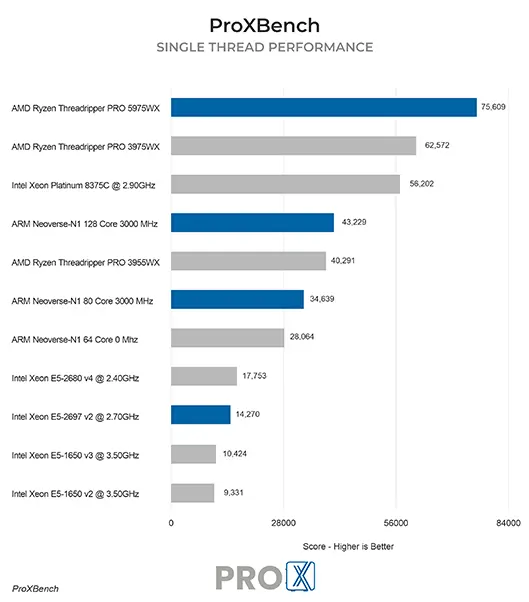
What is the best CPU for Keyshot?

Both AMD and Intel offer workstation-class CPUs with high core counts, but right now AMD’s Threadripper line has the fastest options. Their top model is the AMD Threadripper PRO 7995WX, which has 96 cores and is the fastest for CPU rendering in Keyshot… but also extremely expensive. You can get more than 80% of its performance with the AMD Threadripper 7980X 64-core model, while saving thousands of dollars!

On the other hand, if you are using GPU rendering, the CPU matters very little. In that situation, we generally recommend a high clock speed chip like Intel’s Core family or AMD’s Ryzen line. Those also work well for 3D design and CAD applications, which are commonly used alongside Keyshot. If you want more than two video cards, a lower core count Threadripper PRO offers support for multiple GPUs.

How does Keyshot utilize video cards (GPUs)?

The answer to this question depends on whether you use Keyshot’s CPU or GPU-based rendering mode. For CPU rendering, the video card plays a minimal role – just displaying your scene and the finished render. However, GPU-accelerated rendering will utilize the video card heavily, making the card’s speed and the amount of video memory (VRAM) it has both crucial factors to your overall performance.

What are the best video cards (GPUs) for Keyshot?

GeForce RTX 4080 16GB – A great choice if you want just one or two video cards and don’t work with overly complex scenes.
GeForce RTX 4090 24GB – Our go-to recommendation for most GPU rendering customers, the RTX 4090 provides the best performance in Keyshot while also having a tremendous 24GB of memory. Large tower workstations may even accommodate two!


NVIDIA RTX 6000 Ada 48GB – For those who need a lot of GPU memory and / or want to stack several video cards in the same system, NVIDIA’s professional GPUs are a solid option. The RTX 6000 Ada is the top-end model currently, and offers twice as much VRAM as the leading GeForce model. Moreover, up to three of these can be installed in our full tower chassis while staying within the limits of a 1600W power supply.

Should I use a professional video card for Keyshot?

NVIDIA’s professional-grade video cards can be a better choice than GeForce cards for some users, but they also have drawbacks. The biggest hurdle is their price, which is generally three to four times that of mainstream cards with similar performance – but for that increased price you get several benefits:

Higher VRAM options – up to 48GB on the RTX A6000 and 6000 Ada
Better multi-GPU support – thanks to the use of blower-style cooling systems and more constrained power consumption
ECC memory on higher-end models – for increased stability


Does Keyshot support multiple GPUs?

Yes! Unlike most applications that utilize the GPU, rendering in Keyshot scales almost perfectly with multiple cards. In other words, if you use two cards your renders will complete twice as fast as they would with just a single GPU – and three cards will finish renders three times faster!

How many video cards can I use in a Keyshot workstation?

If you are aiming for multiple video cards, several things will affect how many you can put in a system: the number of PCI-Express lanes available, PCIe slot spacing on the motherboard, the physical size of the chassis, the cooling (airflow) in the case, and wattage capacity of the power supply. Recent generations of graphics cards are larger and more power-hungry than ever, so those all factor into how many graphics cards can be used – which has a big impact on your performance, since Keyshot’s GPU rendering scales very well across multiple GPUs.

Do I need to use SLI or NVLink with multiple GPUs?

Keyshot does support NVLink, but unfortunately NVIDIA has removed it from their latest generation of video cards. It is not present on any of the GeForce RTX 40 Series models or the professional RTX 6000 Ada, and since those cards are so much faster than previous generations the question of NVLink is a moot point at the moment. If you are using a pair of older GPUs that do support NVLink, and a motherboard that is SLI compatible (since enabling SLI is how you turn on NVLink in Windows), then it may be worth making sure that is set up properly for optimal performance.

Do I have to use NVIDIA cards for Keyshot or can I use AMD?

Keyshot currently utilizes CUDA which is proprietary to NVIDIA video cards. If you want to use GPU-based rendering, then, a NVIDIA graphics card is required. If you plan to only use CPU-based rendering, then an AMD GPU or Intel integrated graphics could suffice – but make sure you consider the needs of any other software you will be using on the system as well.

How much memory (RAM) does Keyshot need?

While the exact amount of RAM you need is going to depend on your particular projects and what other software you use, for Keyshot we generally recommend 64GB at minimum. This should be enough for multi-tasking with most 3D, CAD, or architecture applications – as well as rendering modest scenes on the CPU. If you are going to lean into CPU-based rendering, you would likely want 128GB or even more – while GPU-based rendering puts less demand on system memory and instead needs video cards with a lot of onboard VRAM.


What is the best type of drive to use for Keyshot?

Thanks to their speed and relatively affordable price, we strongly recommend solid-state drives (SSDs) for the primary drive that will host your operating system and software (including Keyshot itself). The high speed of SSDs allows your system to boot, launch applications, and load files many times faster than any traditional hard drive. In particular, the newer NVMe type of SSDs utilize the latest connections like M.2 and offer the fastest transfer rates. 1TB capacity is our go-to recommendation to ensure plenty of space for the OS, applications, and active files.


Many users will also want a local drive for storage of older projects and other assets. This can be a traditional hard drive if you value high capacity, or if your budget allows it can be a second SSD.

What sort of drive is best for data storage and backup?

Since SSDs are still more expensive than platter drives per GB, for long-term storage and backup we recommend using a traditional hard drive or even an external drive array. Network attached storage systems are a great way to go for that, as they can be shared between multiple workstations and usually offer features to provide some level of data redundancy (protection against losing files if one of the drives dies).
 

Frequently Asked Questions

ProX PC's Maven workstations stand out for their exceptional performance and versatility. They feature high-end components, providing powerful computing capabilities for demanding tasks. The Maven workstations are designed with flexibility to scale, allowing for extensive customization to meet user-specific needs.

Absolutely! Over the years we have helped quite a few of our customer make the move from Mac to PC. In fact, it is a large enough number that we have a dedicated Need help moving from Mac to PC? page to answer some of the more common questions we receive.

Yes, we offer customizable solutions tailored to your specific requirements. Whether you need extra GPU power, additional RAM, or specialized storage solutions, we can build a workstation that meets your exact needs.

Yes, our workstations are designed with upgradeability in mind. You can easily upgrade components such as the GPU, RAM, and storage to keep up with evolving technology and increasing demands.

We provide comprehensive support, including technical assistance, troubleshooting, and warranty services. Our team is dedicated to ensuring your workstation operates at peak performance and addressing any issues that may arise.

You can contact us through our website's contact form, call our customer support-(011-40727769), or email us at sales@proxpc.com. Our team is ready to help you with any questions or to help you place an order.

Need Help? We're here to help.

Unsure what to get? Have technical questions? Contact us and we'll help you design a custom system which will meet your needs.

ProX PC
Blogs

Read all Blogs

Select your Platform:

Why you should buy from ProX PC

Every ProX PC is unique

Our workstations are extensively customisable as per your requirements which makes your ProX PC Workstation PC unique.

Stress Tested

Our Workstation PCs are stress tested with advance burn-in test techniques so as ensure that you get reliability and performance.

Upto 3 Years of Onsite Warranty

Every Pro X PC comes with standard 3 Years RTB warranty or 3 Years of optional On-Site warranty at minimal cost that covers all your components and gives you peace of mind.

80 Plus Quality Checks

To ensure that our Workstation PC exceeds the industry quality standards we have more than 80 quality check points in place so that you get best of the best.

Performance Grade Cooling

Pro X PC Workstations are equipped with performance cooling solutions so that you could peak your components without stressing them out.

Lifetime Tech Support

Even when your parts warranty expires, we continue to answer your questions and even fix your computer with no labor costs.

Chat with us